Sharing Local WP
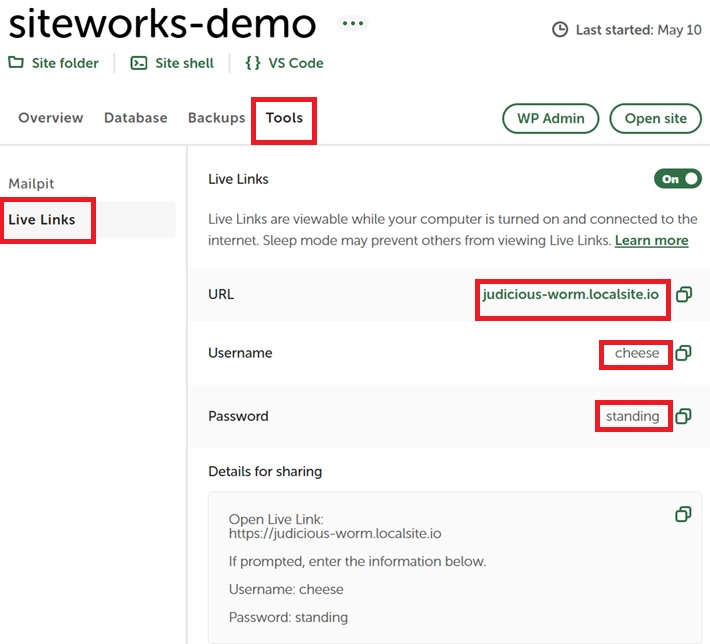
The ability to show a Local WP site to colleagues was limited to real-time screen sharing on a ‘Zoom’ meeting. Local WP now has a feature called Live Links that enables a WordPress site running on your computer to be viewed from the Internet in the same way a production SiteWorks site can. This is achieved without granting access to your home network through firewalls.
You first need to create an account with Local WP using an email address you have access to (or use a Google account). You can then share a URL link along with a simple username and password that colleagues can use to view your site.
It works by Local WP uploading the pages requested to a Local WP server. Your visitors will not be directly accessing Local WP on your computer.
There are instructions here https://localwp.com/help-docs/local-features/live-links (opens in a new browser tab).
Be aware that this works by uploading your site’s pages to a Local WP server and this will be relatively slow if you don’t have a fibre connection. It goes without saying that you need to be running the site being shared and your computer needs to be running and not in “sleep” mode.
You can try out the experience on your own computer by using the credentials shown with menu Tools > Live Links.