
Background
Note that this article covers some dark arts in laying out a workaround. If your experience differs do raise a Help Desk ticket (menu Start here) to give us feedback.
WordPress 7 (spring 2026) has changed the way menus, or Navigation as WordPress calls them, behave. Sites with menu headings that don’t link to a page, usually because the page has been deleted, have suddenly appeared. When clicked on browsers they give error 404, i.e. broken link. This has been observed with Site Builder migrated sites (2024) that had both “Home” and “Welcome” menus with “Home” removed by deleting the page rather than editing the navigation.
This User Guide section shows how to edit the navigation menu and delete redundant entries.
Remove link from submenu heading
There has also been a subtle change in the behaviour of submenu headings.
Submenus are where a menu heading reveals a further menu. Here, hovering over Submenu brings up a menu with Day Trips and Holidays.
They are a popular way to provide an ‘all in one place’ way to navigate larger sites such as this one.
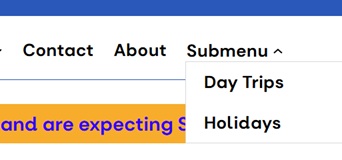
Before WordPress 7, a submenu heading could easily be setup to only reveal a menu when hovered over. Clicking on the heading Submenu would have no effect, your browser would stay on the current page.
WordPress 7 appears to have broken this, at least for some sites and some Navigation configurations. Submenu headings that previously had no effect when clicked on are now linked to one of the pages in the menu they reveal.
Following these steps should make a submenu heading (called Submenu) do nothing when clicked.
Open the menu for editing
One way to edit the menu is on the dashboard select Appearance > Editor and under Design select Navigation.
If there are more than one navigation blocks select the one used in your site’s header. You can identify this from Patterns under Design and inspecting the Header pattern.
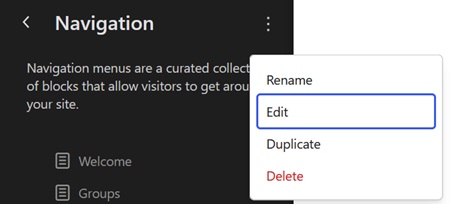
Having selected the Navigation menu click on the three dots next to Navigation and select Edit.
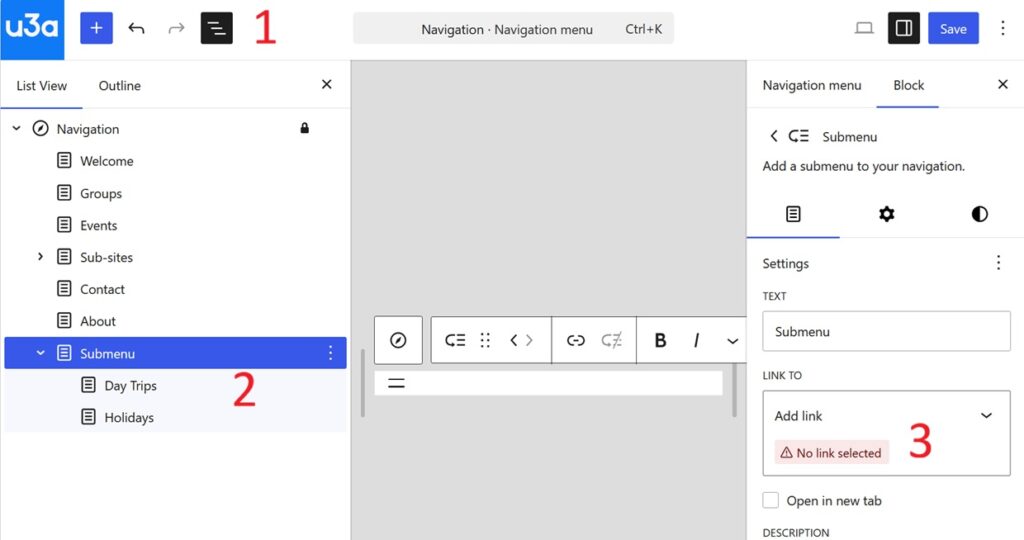
To see what’s going on, use the ‘hamburger’ menu 1 and select the Submenu block 2. Note that the LINK TO has no link 3, but it could equally have a link that needs removing.
Insert a dummy link
Now use the drop-down 4 to open the ‘Search or type URL’ box. Now put a # in it 5.
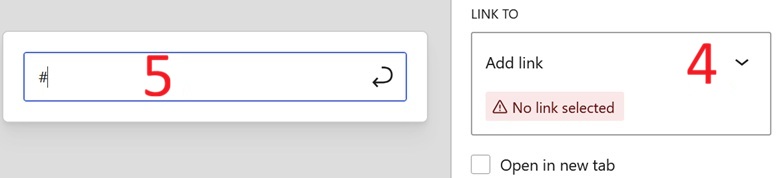
Press Enter on you keyboard and LINK TO becomes and Internal link.
Save your edits as usual.
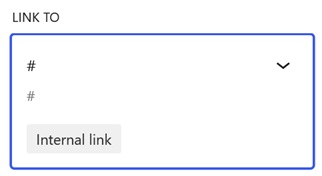
Note that if you are creating a new submenu for the first time you can put a # in the same way.
Technical explanation
In HTML ‘#’ refers to an HTML bookmark (actually called an HTML Anchor) on the current page. Normally it would be to somewhere further down the page, for example ‘#Conclusion’.
A ‘#’ on its own refers to the top of the current page. The dark arts here are that by using ‘#’ WordPress recognises it as a valid link, but clicking on it links to the top of the page being viewed so nothing happens.