
Links that navigate within a page
Links on websites usually take the visitor to another part of the site or to an external website.
Links can also be setup to link within a page, usually for longer pages that demand a fair bit of scrolling. Internal page links can navigate directly to sections, typically the headings.
This link takes your browser to the heading below this contrived content.
this
is
extensive
content
that
makes
the
page
long
this
is
extensive
content
that
makes
the
page
long
extensive
content
will
normally
require
a scroll down to read the heading that follows
Content further down the page
Use the link at the top of this page to move down to this section.
This link takes you to back to the top of the page.
How to setup internal page links
The first step is to give heading blocks references called anchors.
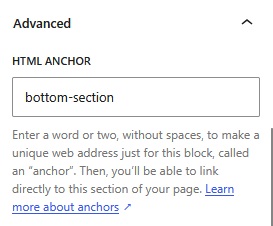
On the Settings panel for a heading scroll down to the “Advanced” section and expand with the arrow.
In HTML ANCHOR Type in a reference to refer to the heading’s location, “bottom-section” in this example.
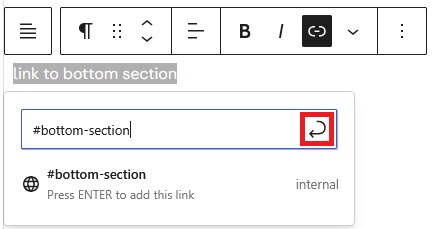
To setup a link to a heading with an anchor, first select the text that will link and click the link menu.

In the blue outlined box for the link type a # and then the anchor name given to the heading being linked to.
The # tells your browser that the link is internal to the page being viewed. Click on the save arrow outlined in red.
Note that WordPress does not check that the anchor typed in exists on the page – do test it before publishing.
To create a link back to the top of the current page then simply us a # on its own as the link.