
The Tabs block
To explain by example, below is a tabs block that could be used as the basis of a page for an upcoming u3a AGM. You can click on the four heading to reveal different content.
St Mary’s Church Hall, Hammersmith Road, W14 0QL.
The hall is on the corner of Edith/Gliddon Road and Hammersmith Road and has wheelchair access. It is about 300m north of Barons Court station or from Hammersmith bus station a 9, 10, 27 or 306 going east will take you to the Brook Green stop (second stop) 100m from the hall.
Welcome
Approval of 2025 AGM minutes
Chair’s Report
Treasurer’s Report
Refreshments
PDF links to previous minutes, Chair’s report etc.
Clive Simpson = Groups Coordinator
Sophie Smith – General Committee member
Setting up a Tabs block
The Tabs block a a bit like the Columns block but simpler.
Insert the block where you want the tabs to appear – use the /t shortcut to locate it.
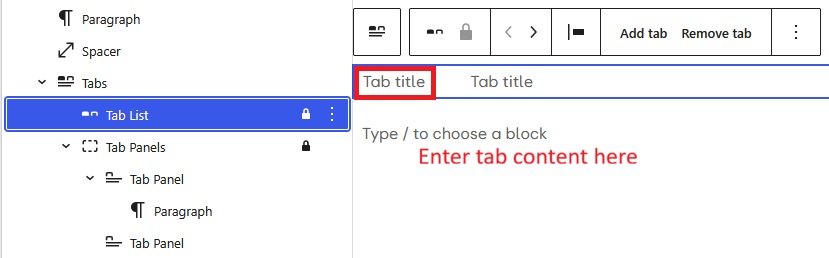
Select the Tab List section of the block. Put the title of the first tab in the red outlined box and the content below. Repeat for the second tab. For further tabs use “Add tab” from the block’s menu.
What are the advantages of the Tabs block?
The Tabs block offers a stylistic alternative means to present a page.
Clearly having a main menu entry for the AGM example would need four submenus and be clunky to say the least. Each section would load as a separate page and the menu would need to be opened repeatedly.
The usual approach is a page with all the content under four headings. This requires the reader to scroll up/down the page.
The need to scroll can be improved by having internal links that can be setup as a short table of contents to the headings on the page. This will be better than tabs for presenting a document with a lot of sections. Having more that say 5 or 6 tabs may have a crowded look, especially with tabs containing a lot of text. A negative is that setting up and maintaining these links is fiddly, the Tabs block offers a cleaner and easier to maintain approach.
For the above example there could be a list of four links.
- Venue and directions
- Agenda
- Reports
- Nominations
Setting up internal links is described in this how-to.