
Launch the contact form from a Button
Spoiler: you can’t from the Button Block but there is a workaround
This article explains a means to simulate a button with a shortcode. It will be fiddly to make it look the way you want. However, once a button has been created, using the “Duplicate” Block feature will create identical ‘buttons’ that only require seconds to change the shortcode.
The WordPress Button Block cannot contain a shortcode such as:
[u3a_contact name="Chair"]Which means you cannot have a button like this to launch the SiteWorks contact form.
There is a way round by combining a Paragraph Block in a Group to make it look like a button.
Chair
A thank you to colleague Frances Kilburn for mentioning this approach on the u3a WordPress Forum. Note there are other ways to achieve this so suggestions for slicker and maintainable solutions welcome.
Setting this up
As ever, it’s always easier to have the List View down the left of your Page using the ‘Hamburger’ menu.
In a Paragraph enter your Shortcode. You can add more text but unfortunately this won’t be clickable.
Using the vertical ‘dots’ menu select Group. This creates a Group Block with just the Paragraph in it.
Now select the Group Block
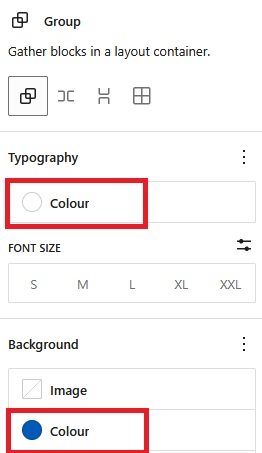
Set the Typography colour of the ‘button’ text (e.g. White) and the button background (e.g. Blue).
If the background colour hasn’t spread to behind the text then it could be the Paragraph Block had a previous setting. Try making the Typography and Background colour match that of the Group Block.
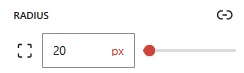
Now scroll down to the RADIUS setting. Enter a value high enough to see the rounded edge fully form on the ends making it look like a ‘button’.
There is also the Border control just below this to optionally give the ‘button’ a border.
The ‘button’ will now be too wide, i.e. like this:
Contact the [u3a_contact name=”Chair”]
Using the Row Block is one way to make the width of the ‘button’ match that of the text it contains. Create a Row Block and place the Group with the Paragraph in it.
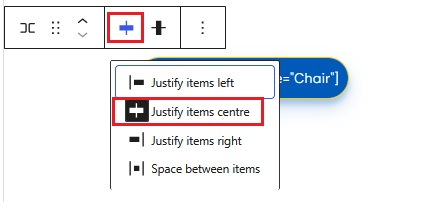
Using the Row Block’s menu to centre justify the ‘button’ Group.
You will almost certainly need to make one or more of the following tweaks.
Making tweaks
Need to place several ‘buttons’ in a line
Using a Columns Block put each ‘button’ in its own column. Combining this with the Row block described above makes the ‘buttons’ robust for different screen widths.
The ‘button‘ is too thin or tall
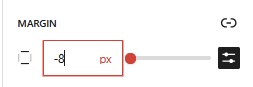
In this case select the Paragraph (not the Group) and in the Setting panel move down and open the MARGIN setting using the + next to ‘Dimensions’.
Use the top/bottom margin slider to make the ‘button’ taller. Should it be too tall already then click on the double arrow on the right. This opens the box seen on this screen shot so you can enter a negative value. Try different values to get the height you want.
The name of the contact is underlined
Chair
Shortcodes are converted to links when a page is viewed and browsers usually underline the link text to highlight this.
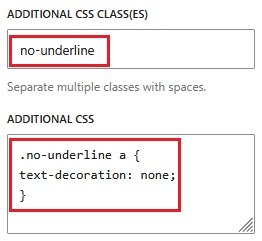
The underlining can be suppressed from the Settings menu for the Paragraph Block containing the shortcode.
Scroll right down to the bottom to locate ‘Advanced’ and expand it. Further down complete the two ADDITIONAL CSS boxes as shown.
Need more text to explain what the button does
Unfortunately only text entered in the shortcode as name=” ” will be clickable in the ‘button’. One option is the use explanatory text outside the ‘button’ such as:
Chair
Click to open the Contact form
It is possible to have a common prefix for all ‘buttons’ placed before the contact’s ‘name’.
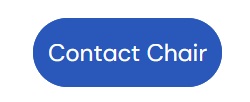
For example ‘Contact’ to result in ‘Contact Chair’ ‘Contact Bridge Convenor’.
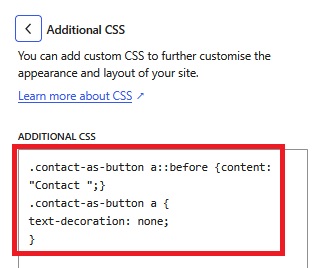
If you do this and want to remove the underlining as described above then both need to be combined in the CSS modification below.
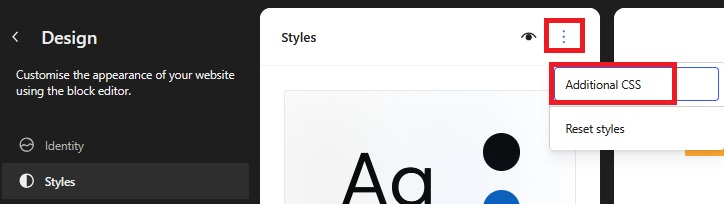
From the Dashboard select Appearance > Editor and then Styles.
Using the three dots menu select Additional CSS
In the box copy and paste the below and save it.
.contact-as-button a::before {content: "Contact ";}
.contact-as-button a {
text-decoration: none;
}
You can change ‘Contact ‘ to be anything you want e.g. ‘Email the ‘
The text-decoration element tells the browser not to underline the text.
Note that having both the prefix and suppress underlings CSS element only seems to work if placed globally in the Styles panel.
If you make CSS changes to your site then do document it in an obvious place for future reference. A good method is to create a Page called README (don’t link it to a menu) and use this to note something like ‘this site has Additional CSS in the Styles settings to configure the look of shortcode buttons’.