
What is a slug in WordPress?
The term slug has nothing to do with the garden creature. The term apparently has its origins in the publishing and newspaper industry, long before the World Wide Web.
Note that this article uses the term Page/Post to refer to an article. SiteWorks has u3a specific content – Groups, Events, Venues etc. In WordPress these are, under the covers as it were, actually WordPress Posts with some initial content and an integrated form.
When you create content for your site it ends up being referenced by a URL so that visitors can view them in a web browser. For example, your SiteWorks site has the URL https://anytown.u3asite.uk. You create a page or post Newsletters and publish it. When viewed in a browser that page/post will have the URL https://anytown.u3asite.uk/newsletters/ and the “newsletters” part of the URL is referred to as a slug by WordPress. So, a u3a Group called Badminton will be given the slug “badminton“. WordPress refers to the whole URL as the Permalink of the Page/Post, while the final part of the URL is known as the slug.
Behind the scenes WordPress will generate a slug from the title of the Page/Post when it is published for the first time. To meet the rules of what can go in a URL changes are made automatically; text is converted to lower-case, spaces become minus characters “-” and the likes of “?” and “&” are suppressed. If the slug already exists for a site then a “-2” or even “-3” etc. is appended.
In most instances we don’t worry about the slug because it makes sense to reflect the title. A key point is that if the title is changed on a published Page/Post WordPress will not change the slug because doing so has implications that are described below.
Why change a slug anyway?
When creating new content then an article may be given a temporary title such as “Testing if I can create a page” and then it is published. Subsequently, the title is changed but the URL remains the rather naff https://anytown.u3asite.uk/testing-if-i-can-create-a-page
Another candidate is a Page/Post that has a particularly long title where having a shorter slug, and hence a slicker looking URL would be an improvement. So a title “Archive history of our u3a and locality” might benefit from the shorter slug say local-history, making the URL easier for visitors to read. Historically, carefully chosen slugs could help search engine rankings, although their influence is much less significant today.
Are there implications in changing the slug?
Before describing how to change a slug there are implications to consider.
If the slug is changed before the Page/Post, including a new u3a Group etc., is published then there are no implications. Of course that step is easily overlooked.
When a slug is changed then certain references will still work because internally WordPress relies on a Page/Post ID – navigation menus and listing u3a Groups are examples that are not affected.
Other links will use the full URL. Below shows a link being edited that references page “B Page” from “A Page”.
Pages can be linked to other Pages using the chain-link button.
Here page ‘A Page’ is linked to ‘B Page’. WordPress shows the slug of ‘B Page’ to be b-page
Note that WordPress does not normally update URLs embedded within page content when the target page’s slug changes.
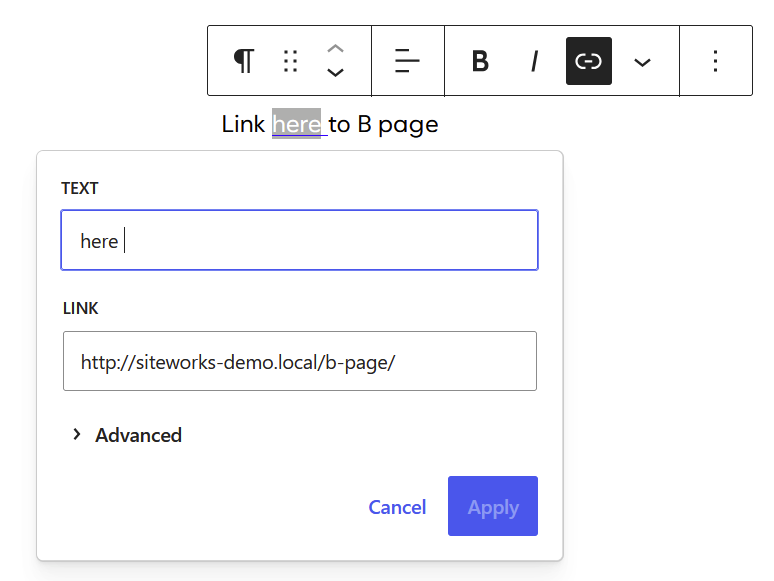
Now if the slug of ‘B Page’ is changed from b-page to say easter-day-out then the URLs that link to b-page are not updated. Instead, WordPress should set up a redirect (technically a 301 redirect) so that the old slug b-page redirects automatically and seamlessly to easter-day-out. However, always test the old URL afterwards to confirm the redirect is working.
It is possible to change a slug for a second time. In this case the behaviour will be different for a Page as opposed to a Post.
For Posts, including u3a Groups, Events, Venues etc., WordPress will should redirect all the historical slug URLs to the URL with the Post’s current slug. For example: slug starts out as walk-1, is changed to walk-2 and again to walk-3. URLs with walk-1 and walk-2 should reliably redirect to walk-3.
For Pages things are more restricted. Essentially only the URL with the original slug (the one set when the Page was published) will redirect to the current URL. So in the walk-1, walk-2, walk-3 example only walk-1 should redirect and the URL for walk-2 will result in a Page Not Found error (404).
How to change a slug
To change the slug then from the Dashboard bring up the listing of All Pages, All Posts, All Groups etc.
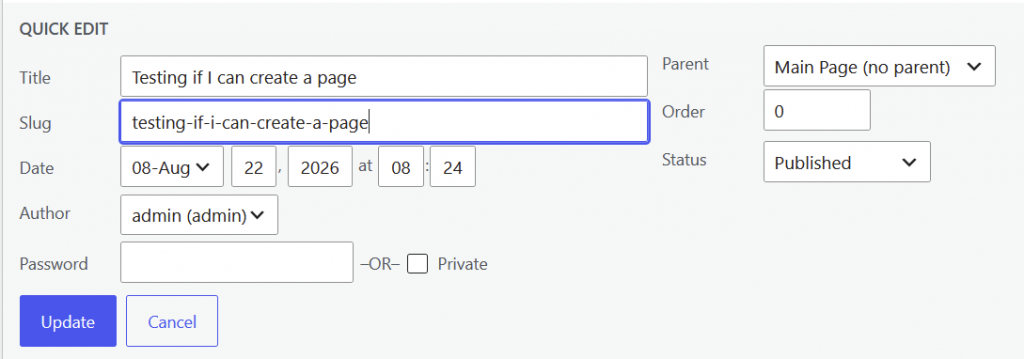
Hover over the Page in the listings view and click on Quick Edit.
Overtype the Slug and click Update to change it.
Slugs can also be changed from the Settings panel when editing:
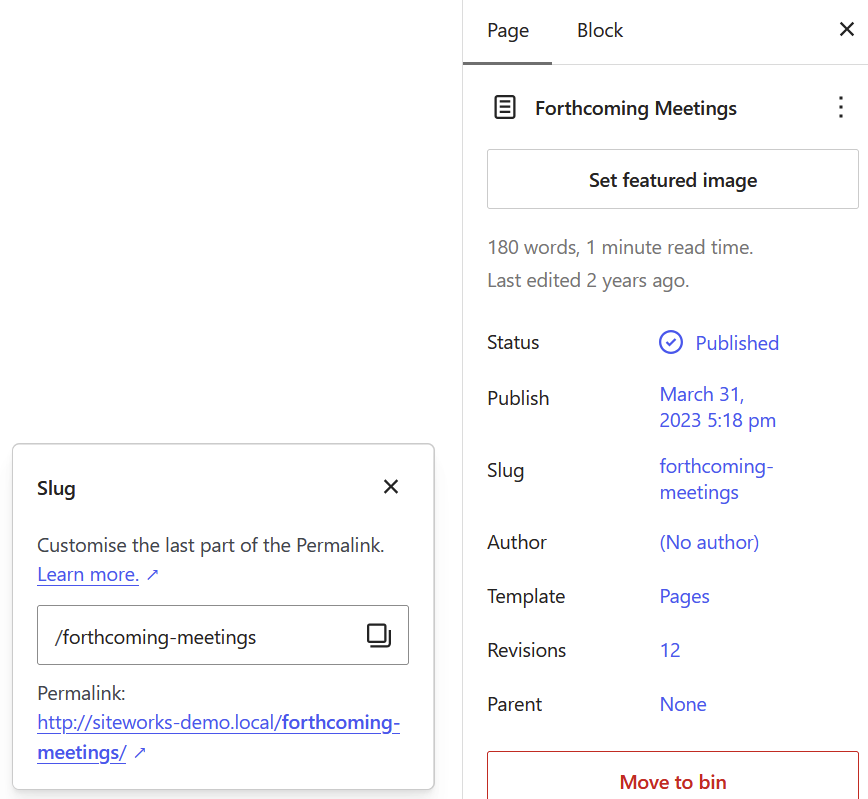
The slug can also be changed from the Page settings (right hand panel when editing the Page).
To change the slug change the text in the box below Slug, in this case /forthcoming-meetings (keep the leading /).
Recommendations
- When creating a new Page/Post (including Groups etc.) see if the slug WordPress generates from the title really needs changing. If it does, try to change it while in Draft before it’s first Published. Otherwise, change it soon after before links to it become established.
- Keep it simple. Only consider changing the slug of an established Page/Post (or Group etc.) if the slug is way off the mark e.g. test-page-by-william
- If you need to change the slug of a Post after publication then it should work fine, always test the old URL to be sure.
- Changing the slug of Pages more than once unfortunately means only the original slug will redirect. Over time, and with changes in Web Managers, it will be hard to establish the history of the Page’s slugs.
- If redirection for a Page is an issue consider identifying links to historic broken slugs. The how-to article Broken links to your live site will help identify if Page Not Found will be an issue from external websites.